

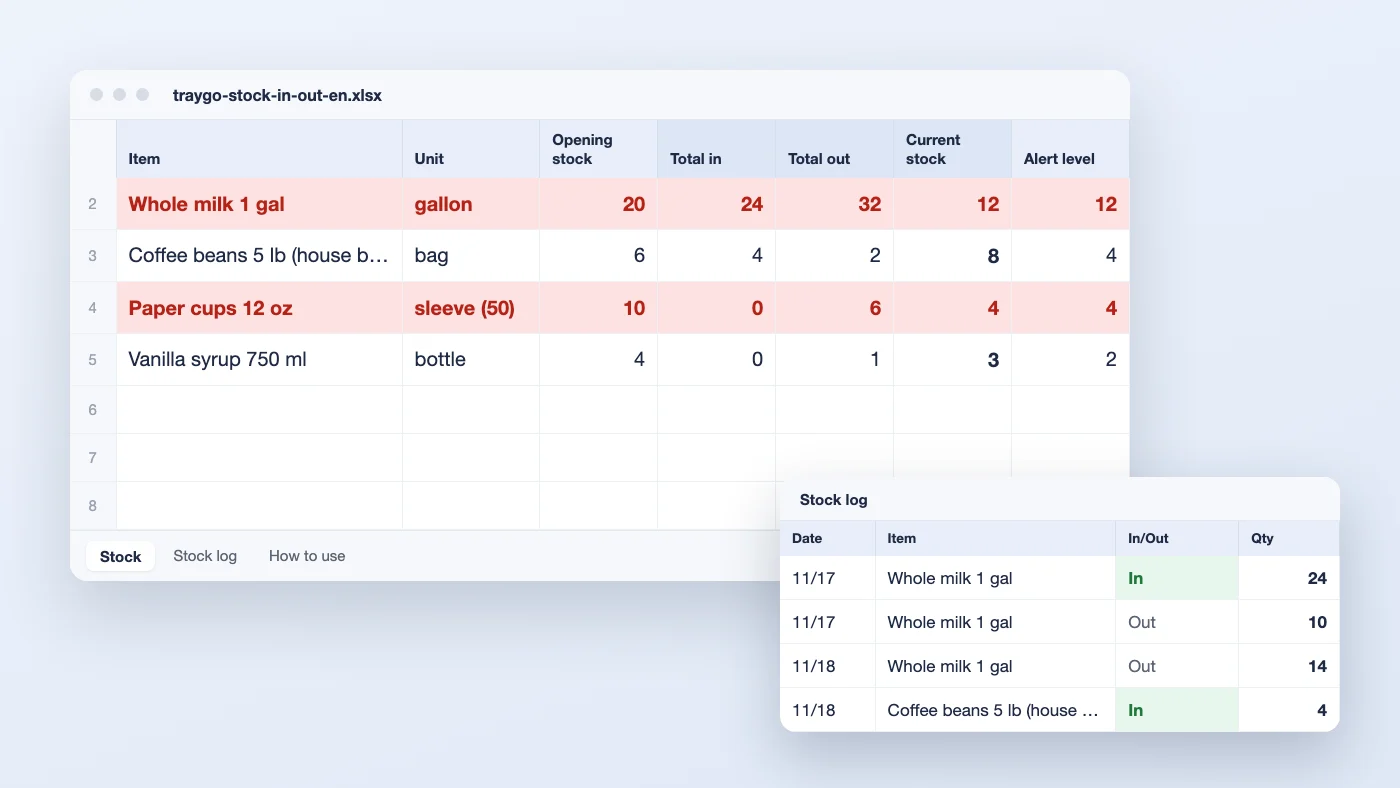
The most common way to track stock in Excel is to overwrite the number in the stock column. You had 20 gallons of milk, you used 8, so you change it to 12.
It feels quick, but when the number stops matching the shelf, there’s no way to find out why. Nothing tells you what came in, what went out, or when.
A stock in/stock out log works the other way around. You never touch the stock number. You add one row for each delivery or usage, and Excel keeps a running inventory for you.
The short answer: two sheets
- Stock sheet: one row per item. You fill in item, unit, opening stock and alert level. Total in, total out and current stock are formulas.
- Stock log sheet: one row every time something comes in or goes out. Date, item, In or Out, quantity.
Here’s how current stock works out, using a café’s milk as an example.
This file has all of that built in. Download it, delete the sample rows and start logging.
Building it yourself: one formula
If you’d rather build it from scratch, the whole trick is one SUMIFS. In D2 on the Stock sheet (total in), enter:
=SUMIFS('Stock log'!D:D, 'Stock log'!B:B, A2, 'Stock log'!C:C, "In")
It means “on the Stock log, add up the quantity of every row where the item matches A2 and the type is In.” For total out (E2), change "In" to "Out". Current stock (F2) is =C2+D2-E2. Then drag all three down.
Two more steps prevent most mistakes.
- Pick items from a dropdownAdd data validation (list) to the item column on the Stock log and point it at the item column on the Stock sheet. Nobody types names by hand, so they always match.
- Turn low rows redAdd conditional formatting on the Stock sheet so any row where current stock is at or below the alert level turns red. In the morning, you only look at the red rows.
3 common mistakes
- Typing over current stockOnce the formula is gone, that item stops calculating for good. If a count doesn't match, log the difference as In or Out and write "stock count" in the memo.
- Item names that almost matchTo Excel, "Whole milk 1 gal" and "Whole milk 1gal" are different items. One missing space drops rows from the total, and current stock shows more than you really have. A dropdown makes this mistake impossible.
- The file gets heavyA few dozen rows a day turns into thousands within months. Once a year, do a full count, carry those numbers into a new file as opening stock and start fresh.
There’s a faster way to run that year-end count in this post.
When the Excel log starts to strain
If you’re the only one logging, this sheet is plenty. It starts taking real effort when:
- Two or more people log: several people editing one file means overwritten rows or a pile of copies.
- You need to check from outside the shop: it's hard to answer "how much milk do we have?" while you're on the phone with a supplier.
- You want to hear about shortages first: red rows only show up when someone opens the file.
Other signs that a spreadsheet is struggling, and habits that help if you stay with Excel, are in this post.
TrayGo is basically this log moved onto your phone. Tap in or out and current stock changes immediately, with a record of who changed what and when. When an item drops to its alert level, your phone tells you.
You can bring your items across in one go. The app’s Excel import reads the column order of the free inventory template. Paste item, current stock and unit from this log into the template’s Item Name, Quantity and Unit columns, then upload it. Use “Paste Values” for current stock so you paste numbers, not formulas. Step by step: add items from Excel.
Try this today
Download the file and log only what came in and went out today. For opening stock, use whatever you can see on the shelf right now. After a week, you’ll see which items move faster than you thought.
Summary
- Don't overwrite the stock number. Log only what comes in and goes out
- Current stock = opening stock + total in − total out (SUMIFS)
- Pick items from a dropdown so names always match
- If a count is off, log the difference as one row
- When someone else starts logging too, it's time for the app