
If you have a lot of items, Excel is faster than adding them one by one. Download the TrayGo template, fill it in and upload it.
1. Download the template
On the Inventory tab, tap the upload icon (Import Excel) at the top and choose Download Template.
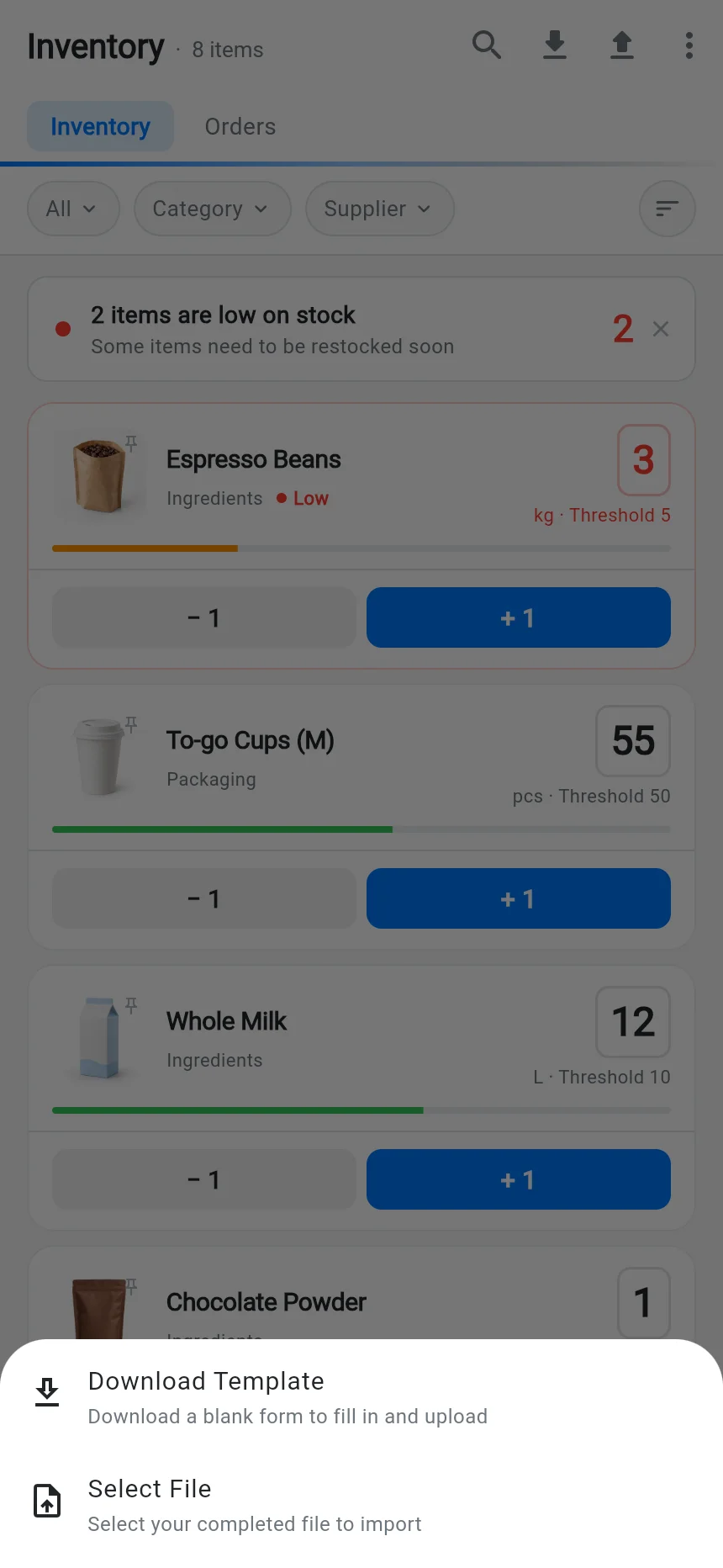
Always use this template. TrayGo reads the column order, not the column headings, so any other layout will put your data in the wrong fields.
2. Fill in the template
One row per item. Only Item Name and Quantity are required; the rest can stay empty.
| Column | What to enter |
|---|---|
| Item Name * | The item’s name |
| Category | A new category is created if the name doesn’t exist yet |
| Quantity * | How many you have right now (a number) |
| Unit | pcs, box, kg and so on |
| Alert Threshold | Same as ‘Low Stock Threshold’ in the app. At or below this number, the item is marked as low |
| Notification Setting | Enter Y to turn on the low stock alert |
| Expiry Date | Format: 2026-12-31 |
| Supplier, Contact, Reorder Quantity, Unit Cost, Sale Price | Only what you need |
Leave the ‘Status’ and ‘Last Update’ columns empty. Anything in them is ignored.
3. Upload the file
In the same menu, tap Select File and pick the file you saved (.xlsx). Before importing, TrayGo shows you how many items are new and how many will be updated. Rows with no name, or with a quantity that isn’t a number, are skipped, and you’ll see which row numbers they were.
Important
- Only .xlsx files can be uploaded. If you made the sheet in Google Sheets, download it as .xlsx first.
- Only the Owner and Manager can import from Excel.
- The Free plan allows up to 100 items. If your current items plus the new ones would go over 100, the import is stopped before it starts and you’ll see a message explaining why.