
When people first get their stock in order, most of them open Excel. It’s familiar, it costs nothing extra, and you can set up the columns however you like. If you don’t have many items and you manage them on your own, Excel is plenty.
But once the item list grows and staff start recording too, you somehow end up spending more time looking after the sheet. That’s not because Excel is bad. Excel is a blank sheet that can become anything, so everything inventory needs, you have to build yourself, piece by piece.
Shops where Excel works well
If this sounds like you, it’s fine to keep using Excel.
- You have a few dozen items, and they don't change often
- You manage stock alone, or only one person does the recording
- You update it once a day, at a set time, at the computer
On the other hand, if you start noticing the signs below, your sheet isn’t keeping up with the size of your shop.
4 signs your spreadsheet is struggling
The sheet stays quiet when you run lowConditional formatting can turn low cells red. But only the person who opens the file sees that red cell. The sheet won't reach out to you first. How to know before you run low is in our post on stockouts.
"When and why it went down" isn't keptUsually you delete the number in the quantity cell and type a new one. You know how many you have now, but how many you sold or threw away yesterday is gone. To keep a history, you have to build separate sheets and formulas.
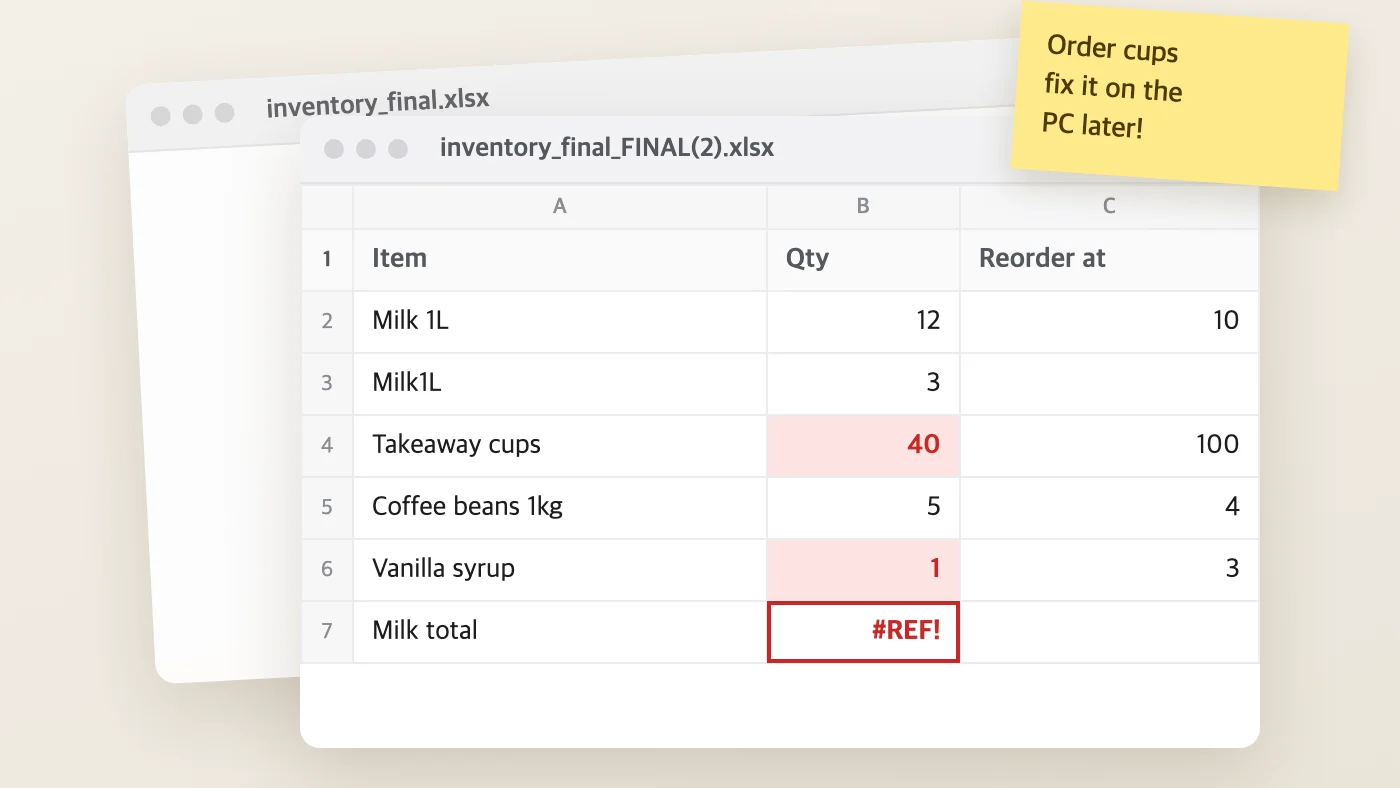
Formulas quietly breakInsert a row or sort the list, and an item can drop out of the total range. Or someone types a plain number over a formula cell. If no error shows up, you never know it's wrong.
More people means more copies of the fileSend the file back and forth over chat and you get "inventory_final" and "inventory_final_edited", and nobody knows which one is right. Even on a phone, finding a tiny cell and fixing a number is fiddly, so it turns into "I'll do it on the PC later."
If you stick with Excel, 5 habits that make it easier
If you’re not planning to switch yet, these alone will make things much smoother.
1. Split it into an “Items” sheet and a “Log” sheet
Keep only names and alert thresholds on the items sheet, and add every delivery and every use as one line on the log sheet. Since you never overwrite the quantity, you can see when and why stock went down. You can also download a free stock in/out sheet with this layout and the formulas already set up.
2. Pick one name for each item
If ‘Milk 1L’, ‘Milk1L’ and ‘Whole milk’ get mixed together, your totals split. Use data validation so names are picked from a list, and typos drop off.
3. Lock the formula cells
Use sheet protection to lock the cells that contain formulas, so nobody overwrites them with a number by accident.
4. Add an alert threshold column
For each item, write down an “order when it gets this low” number, and set the cell to change color when the quantity falls below it. Just scanning those colors once a day cuts down on stockouts.
5. Keep one file and share it with a link
Don’t send the file around. Put a single copy on OneDrive or Google Drive and open it together. That alone fixes most version mix-ups.
When it’s time to move to an app
If you follow these habits and the points below still apply, you’re spending more time looking after the sheet than looking at your stock.
- You have over 50 items, and the list keeps growing
- Staff take turns recording stock
- You keep running out even though it was in the sheet
- You want to see what you threw away, sold and used, separately
How to move to TrayGo
You don’t need to type everything in again. Copy what’s in your current sheet into the TrayGo template, and everything is added in one go.
- Get the TrayGo Excel templateTap the ↑ button at the top of the Inventory screen and choose Download Template. If you upload your old file as is, the columns end up in the wrong place, so please use this template.
- Copy in item names, quantities and thresholdsItem name and quantity are all you need. Fill in the alert threshold and 'Notification Setting' (Y) too, and low stock alerts are on right away.
- Upload the file and checkBefore importing, TrayGo shows how many items are new and how many will be updated.
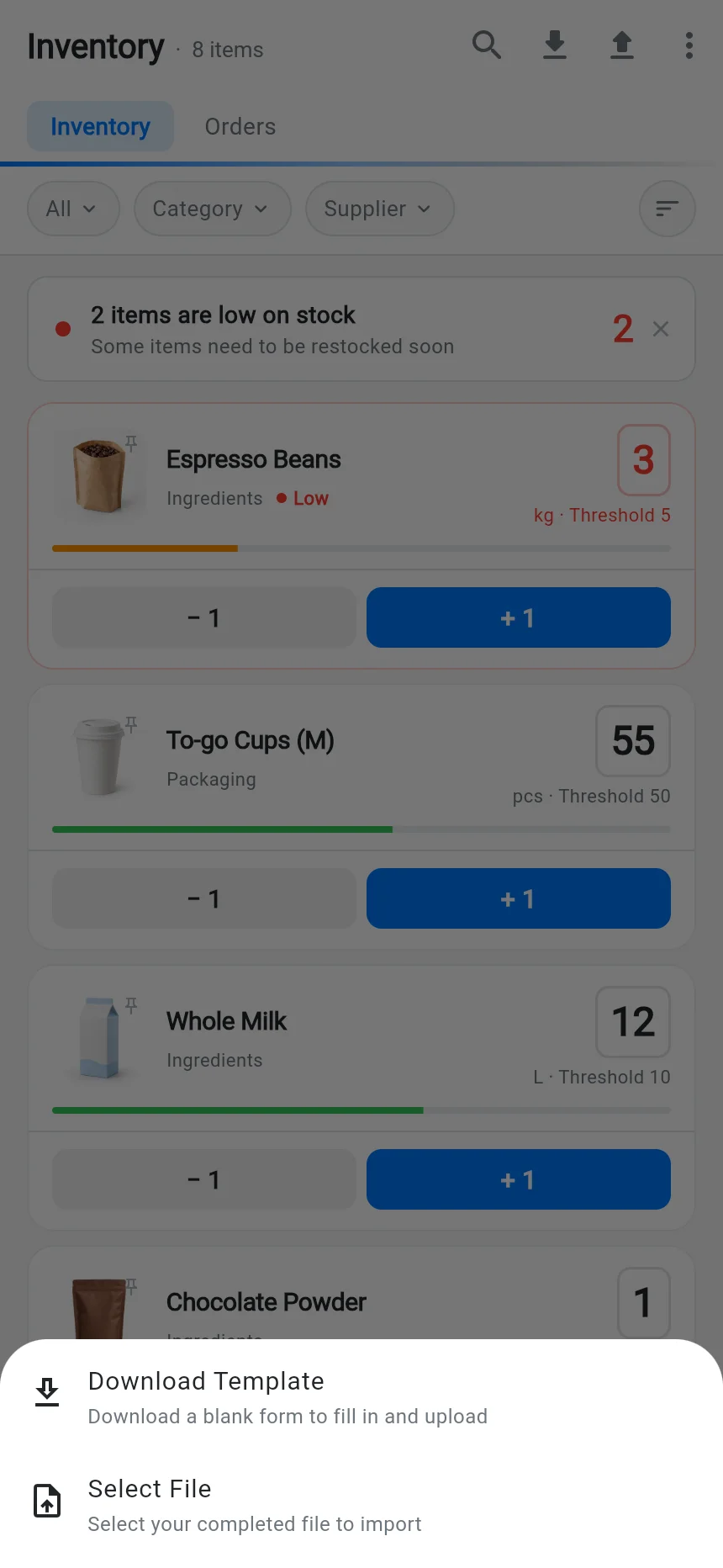
From then on, just tap +1 or −1 on your phone at the shelf and every change is recorded. Deliveries, sales and waste are kept separately, and for items with alerts on, everyone on the team gets notified when stock reaches the threshold.
It works on your PC too. Open the TrayGo web app in your computer’s browser and you’ll see the same stock as on your phone. Do the organizing on a big screen like you would in Excel, and the recording on your phone at the shelf. No more “I’ll copy it over on the PC later.”
For the full steps, see the Import items from Excel guide.
Summary
- Excel is a great tool for getting started with inventory
- But alerts, history, formulas and multiple people are things you have to build and maintain yourself
- If you keep using it, split your sheets, unify names, lock formulas, add a threshold column and keep just one file
- When looking after the sheet takes longer than looking at your stock, it's time to switch