
Update the quantity every time stock comes in or goes out, and the numbers in the app will keep matching what’s on your shelves. It only takes a few taps.
1. When stock goes up (Stock In)
In the inventory list, tap +1 on the item card as many times as you need, then tap Apply at the bottom.
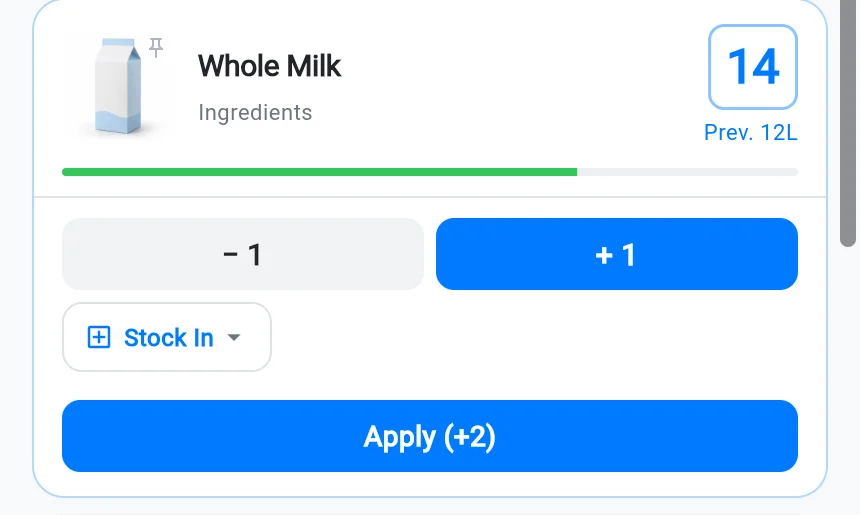
- Nothing is saved until you tap Apply. If you tapped too many times, just use the opposite button to correct it.
- The type is Stock In by default. If a customer brought something back, tap the Stock In chip and switch it to Return.
2. When stock goes down (Use, Sale, Disposal)
Tap -1, then Apply, and a window opens asking how the stock left.
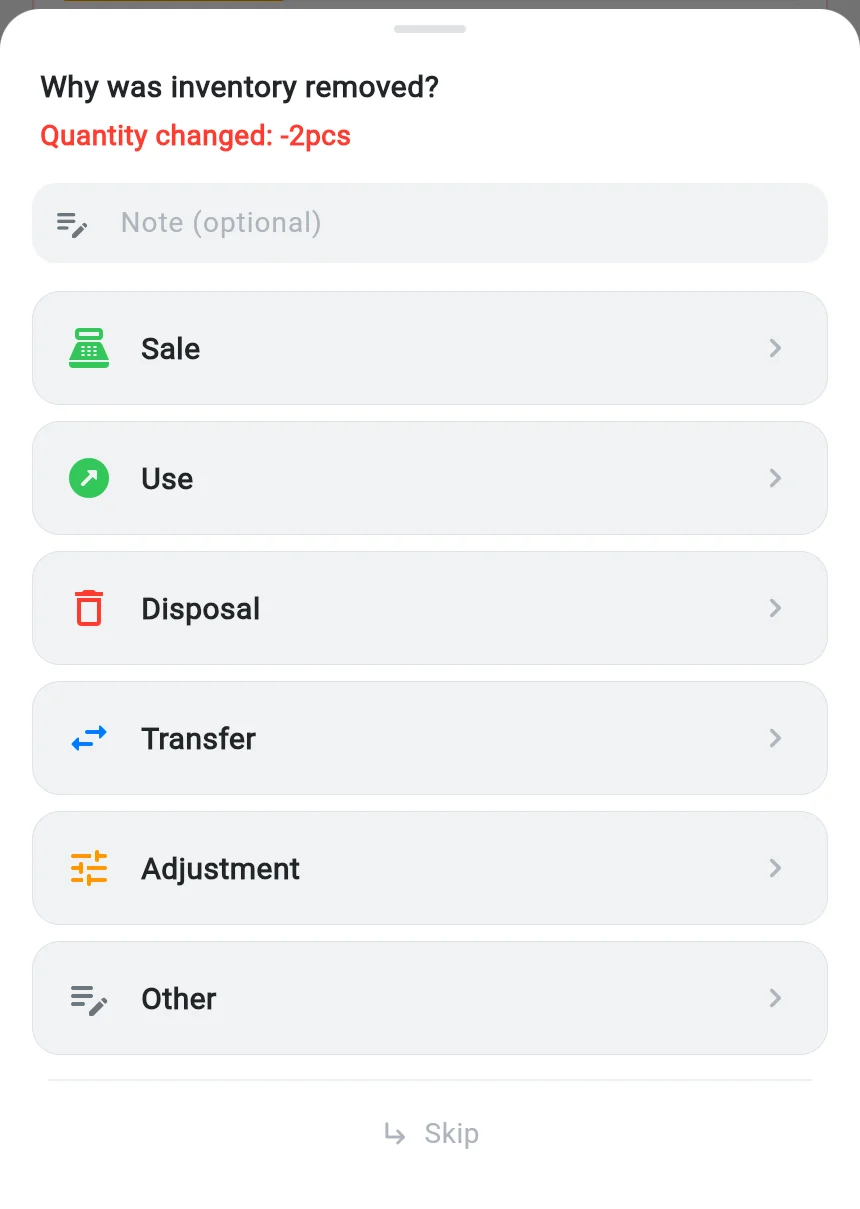
| Type | Use it when |
|---|---|
| Use | You used it in the shop: making drinks, cooking, cleaning |
| Sale | You sold it to a customer as is |
| Disposal | It expired and was thrown away, or it broke |
| Transfer | You moved it to another store or a storeroom |
| Adjustment | You counted and the number was off, so you corrected it |
Picking a type is optional (Skip). But if you do pick one, Analytics keeps sales and disposals apart, so you can see how much you threw away. You can also leave a short reason in the Note (optional) field at the top.
3. Sales can include the amount
When you choose Sale, there’s one more step to enter the amount.
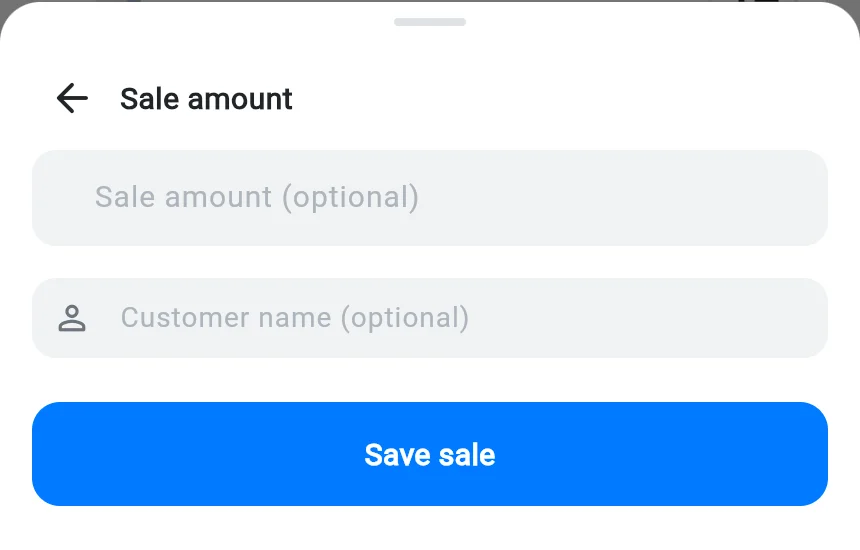
- If the item has a sale price, sale price × quantity is filled in for you. Gave a discount? Just change the amount and the discount rate is calculated too.
- Leave the amount empty and save, and only the quantity is recorded.
4. When you’d rather type the number
Tap the big number on the card to open the input window. Choose + Increase, - Decrease or = Direct to change it in one go. Great when a whole box arrives.
Long-press the +/- buttons to set how much each tap changes (for example, 6 at a time).
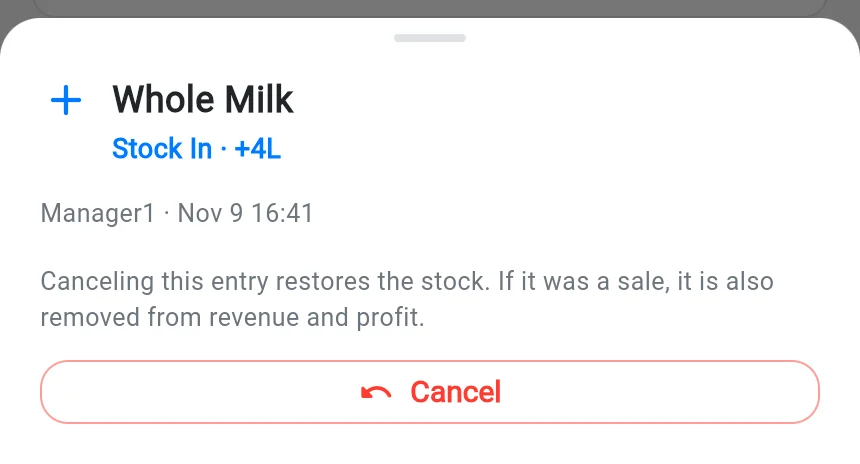
5. If you recorded something by mistake
On the History tab, tap the record and then Cancel. The quantity goes back to what it was. If it was a sale, it’s also removed from your revenue.
Good to know
- Staff can change quantities too. Viewers can only look.
- Every change is kept in History, with who made it and when.